Step 1
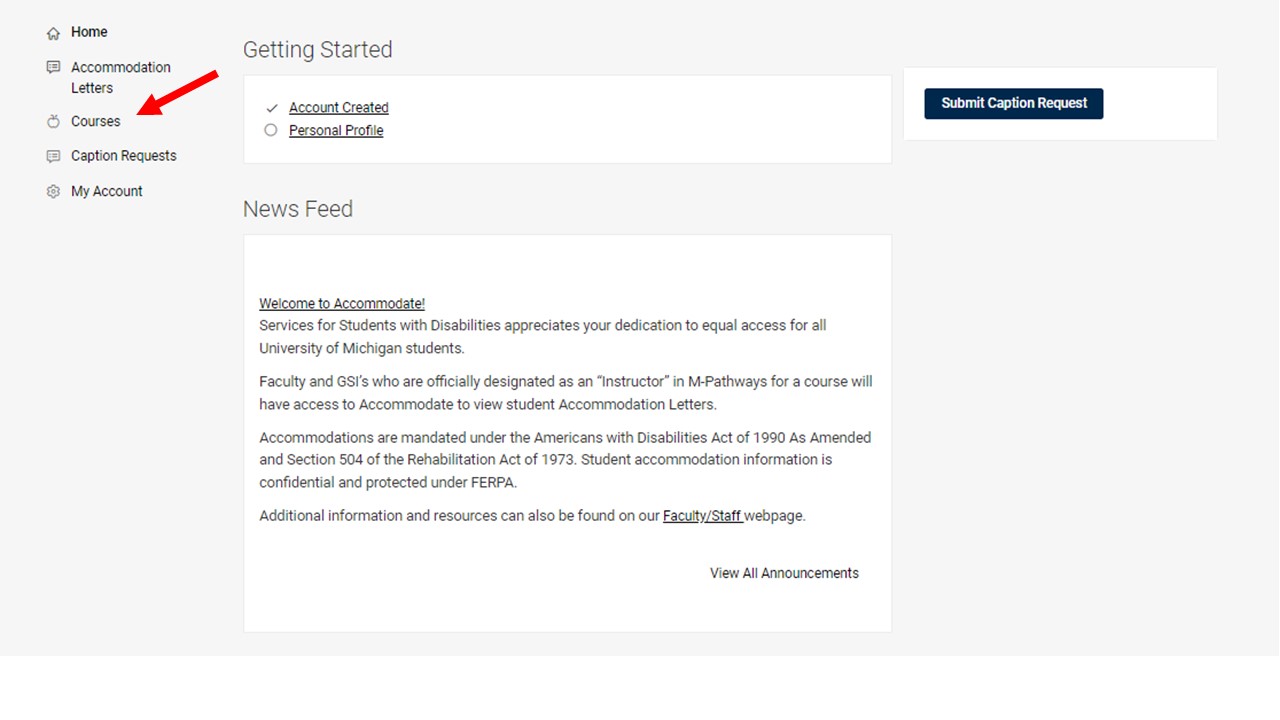
Log in to Accommodate and select “Courses” on the left-hand side of the home page.
Step 2
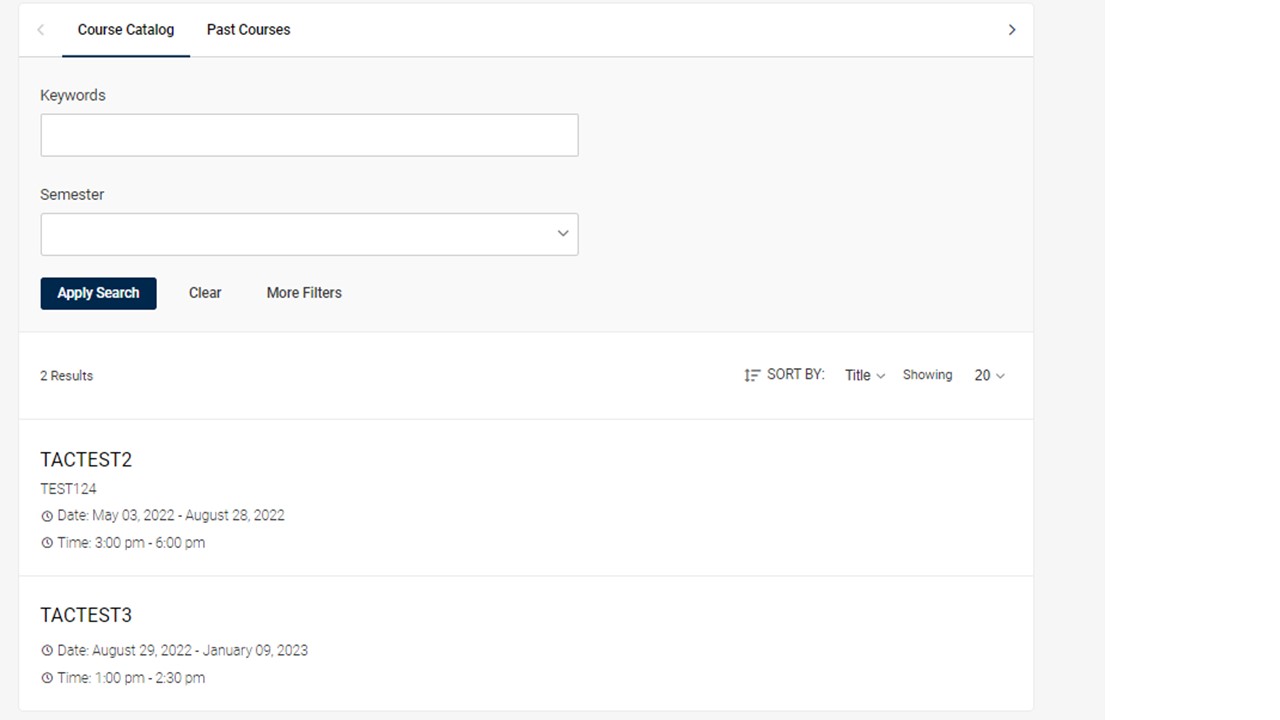
You will now see the Course Catalog, which should automatically list all the courses you are teaching for the current semester. If you would like to select a different semester, please use the “Semester” drop-down menu.
Step 3
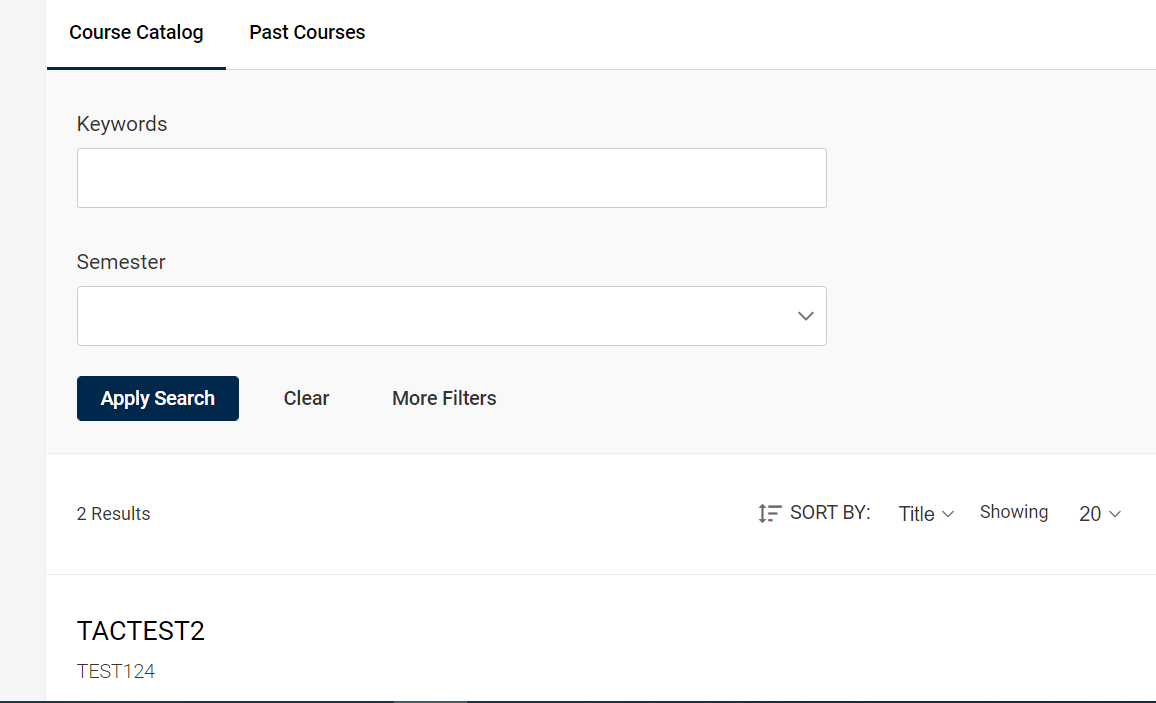
From the list of courses for the selected semester, select which course you would like to request an exam for.
Step 4
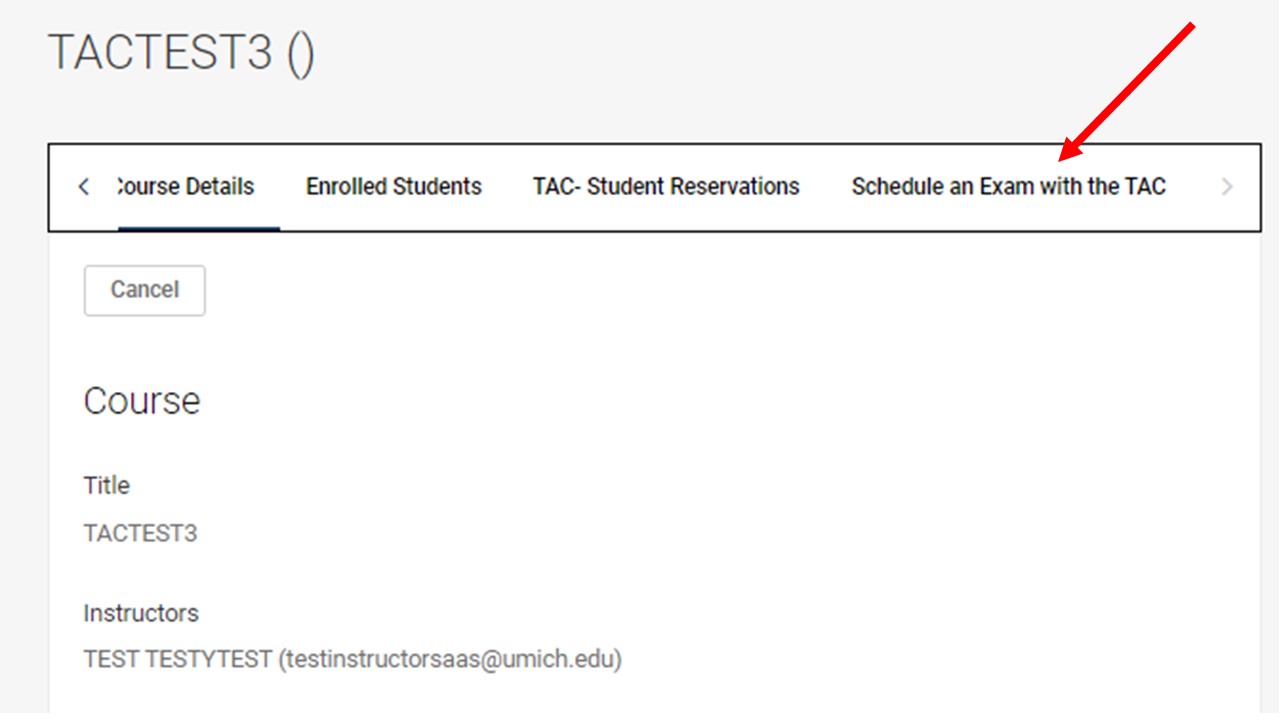
Within the selected course, click on the right arrow at the top of the page to view other selection options. Then, select “TAC - Course Exam Portal.”
Step 5
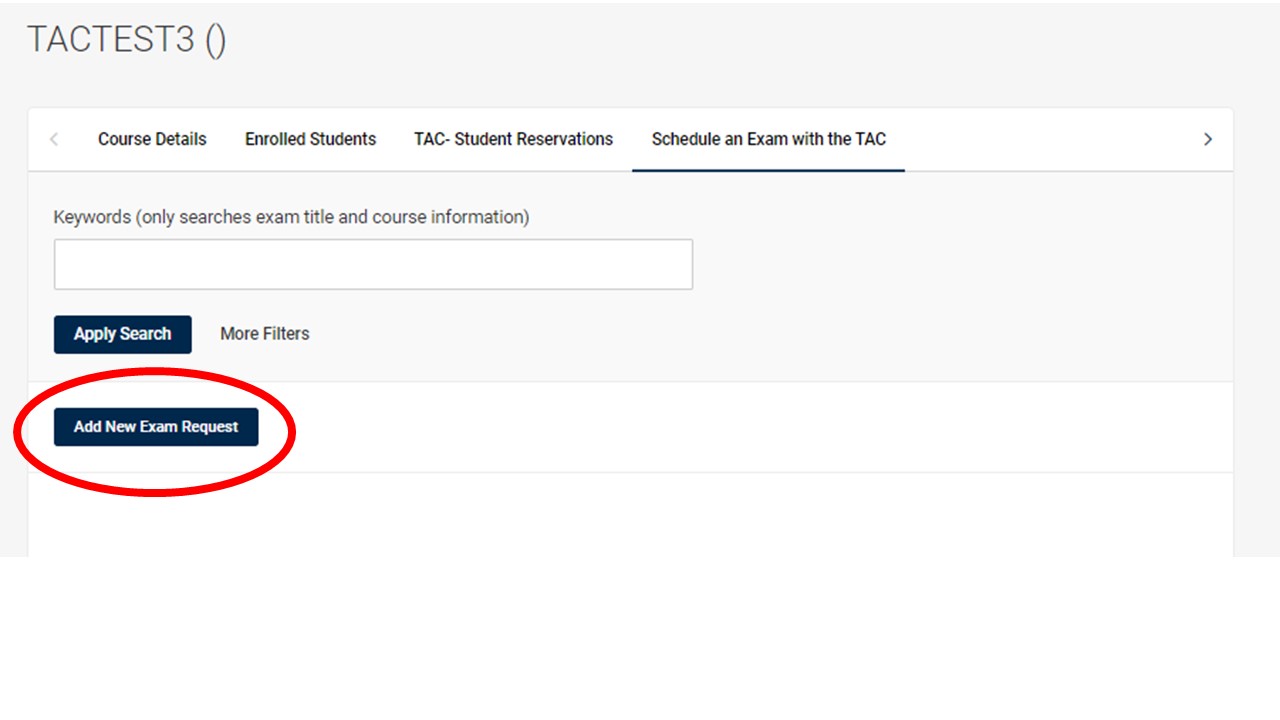
On the following page, please select “Add New Exam Request.”
Step 6
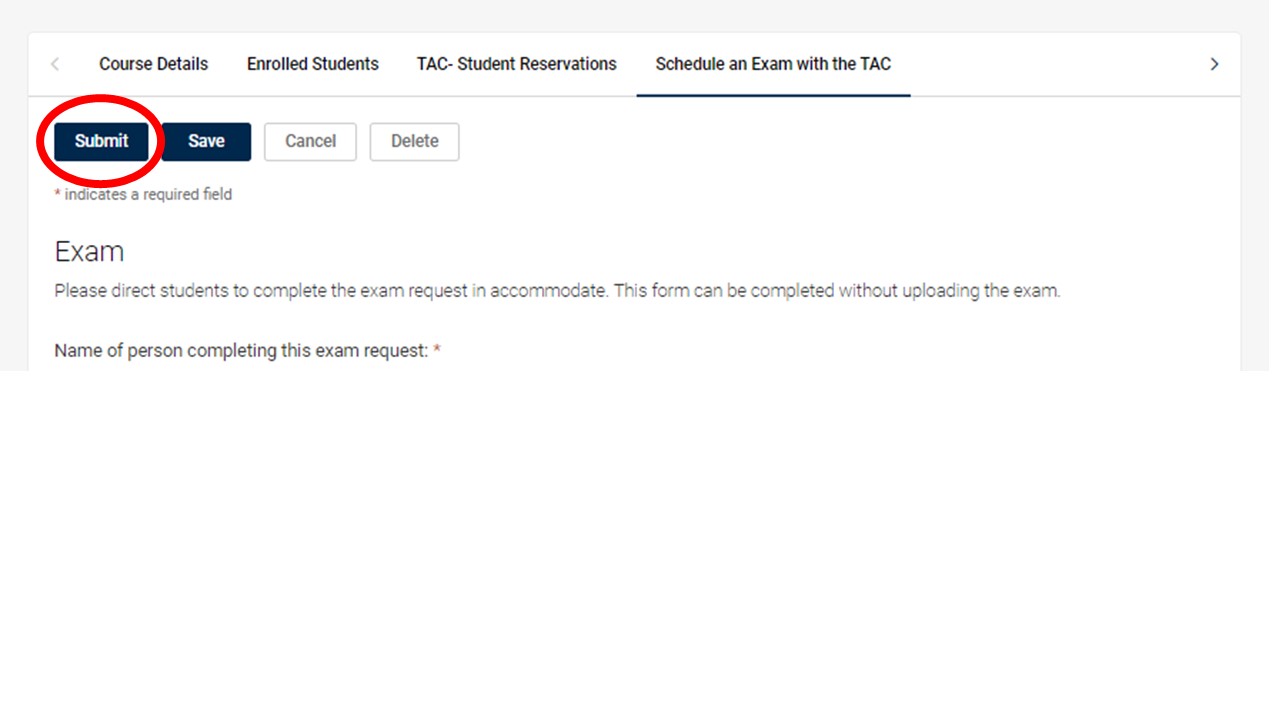
Enter in all the required information about the exam, and then select “Submit” once you have completed entering information into the exam request form. You will be able to go back and edit any exam request you submit to the TAC.