Why should I access accommodation letters?
The accommodation letters found within the "accommodation letters" tab list describe the accommodations each student has been approved for. Accessing these letters is of utmost importance, as they allow you to know the accommodations a student is approved for in your class.
There are several ways to access letters in Accommodate. Accessing letters via the "courses" tab allows you to easily see the letters for each course you instruct.
Step 1
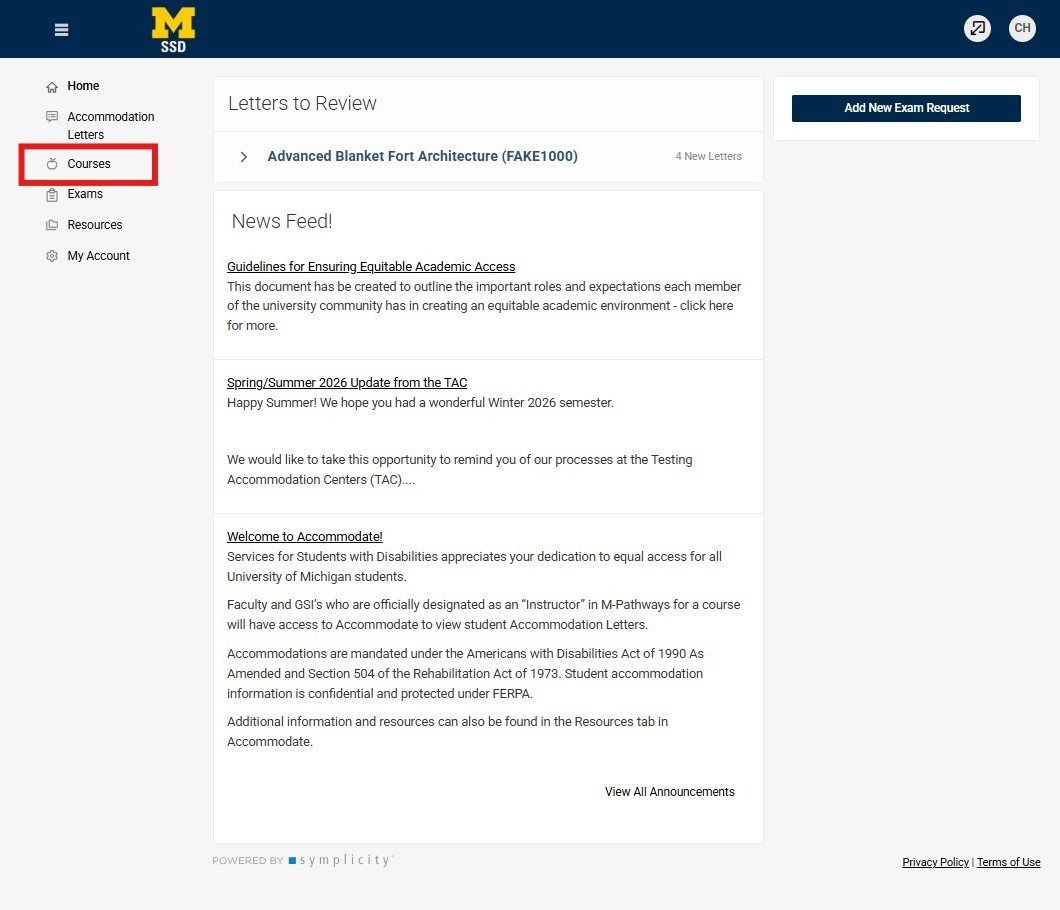
From the home page of Accommodate, there is a meny on the left-hand side. The third menu option is Courses. Select the Courses button.
Step 2
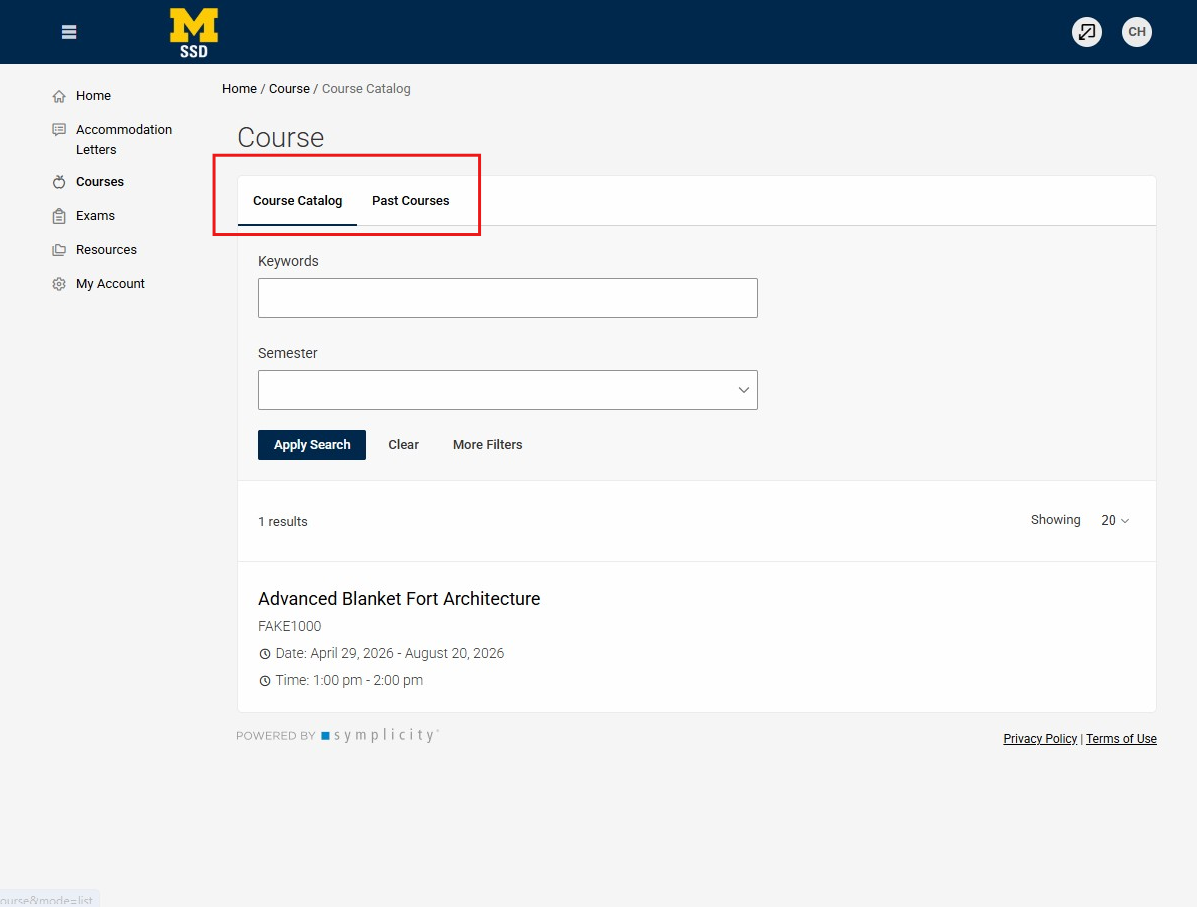
This will populate a new page, the Courses Page. This page will list all courses that currently have you listed as an instructor. If you are looking for a past course, those can be accessed in the past courses tab of this page.
Step 3
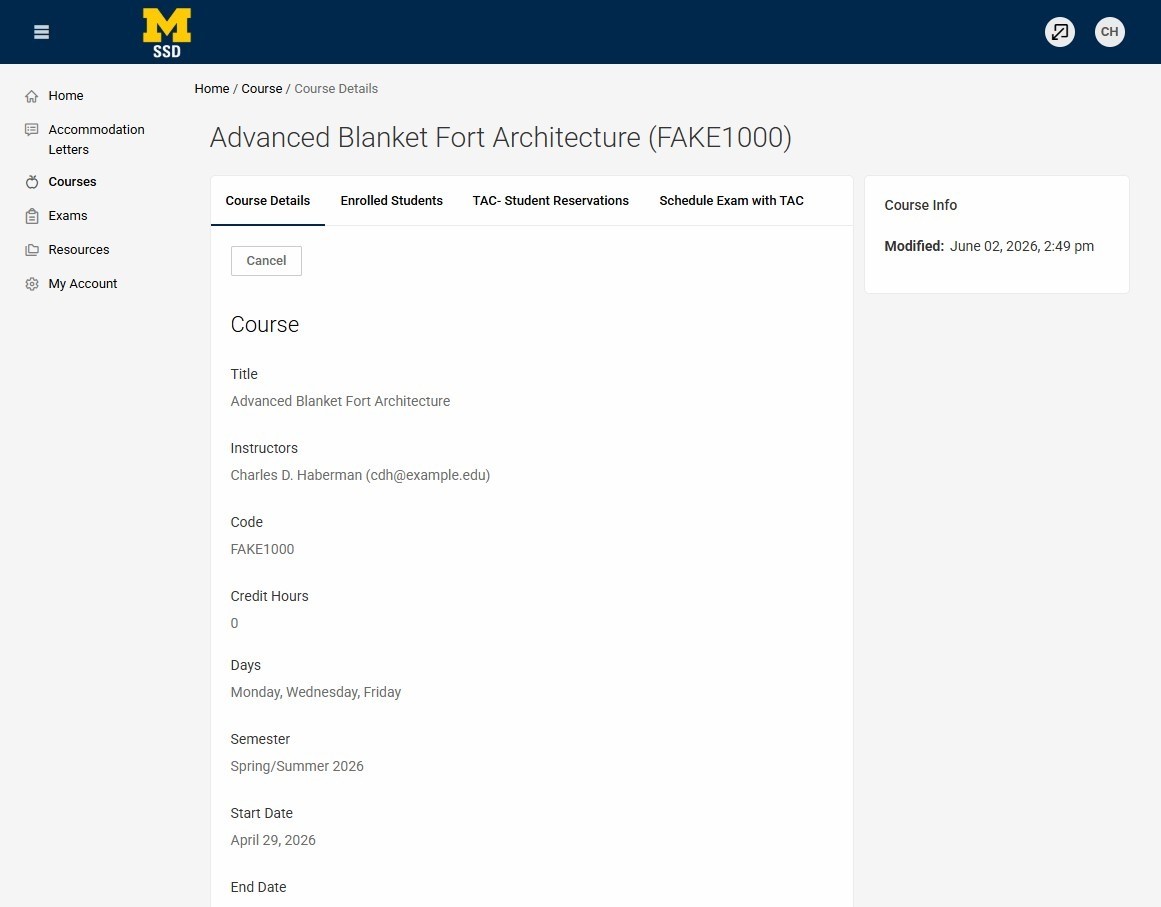
You will want to select the course for which you want to review letters. This will populate the specific course information.
Step 4
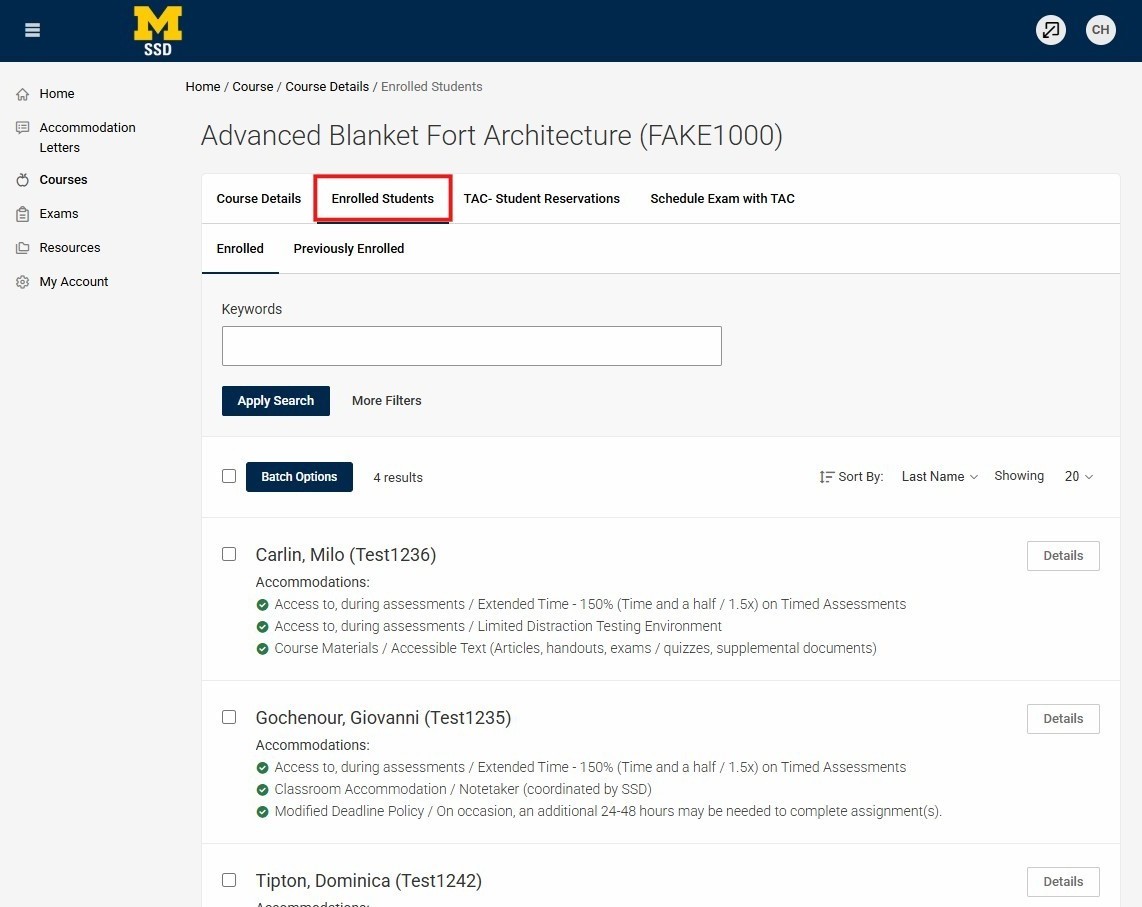
From the Course Details page, you will want to select Enrolled Students. This will populate a list of the students in the course who have request accommodations for the semester up to that point.
Step 5
From the student list you can see a snapshot of the accommodations they have requested for your course listed below their name.
Step 6
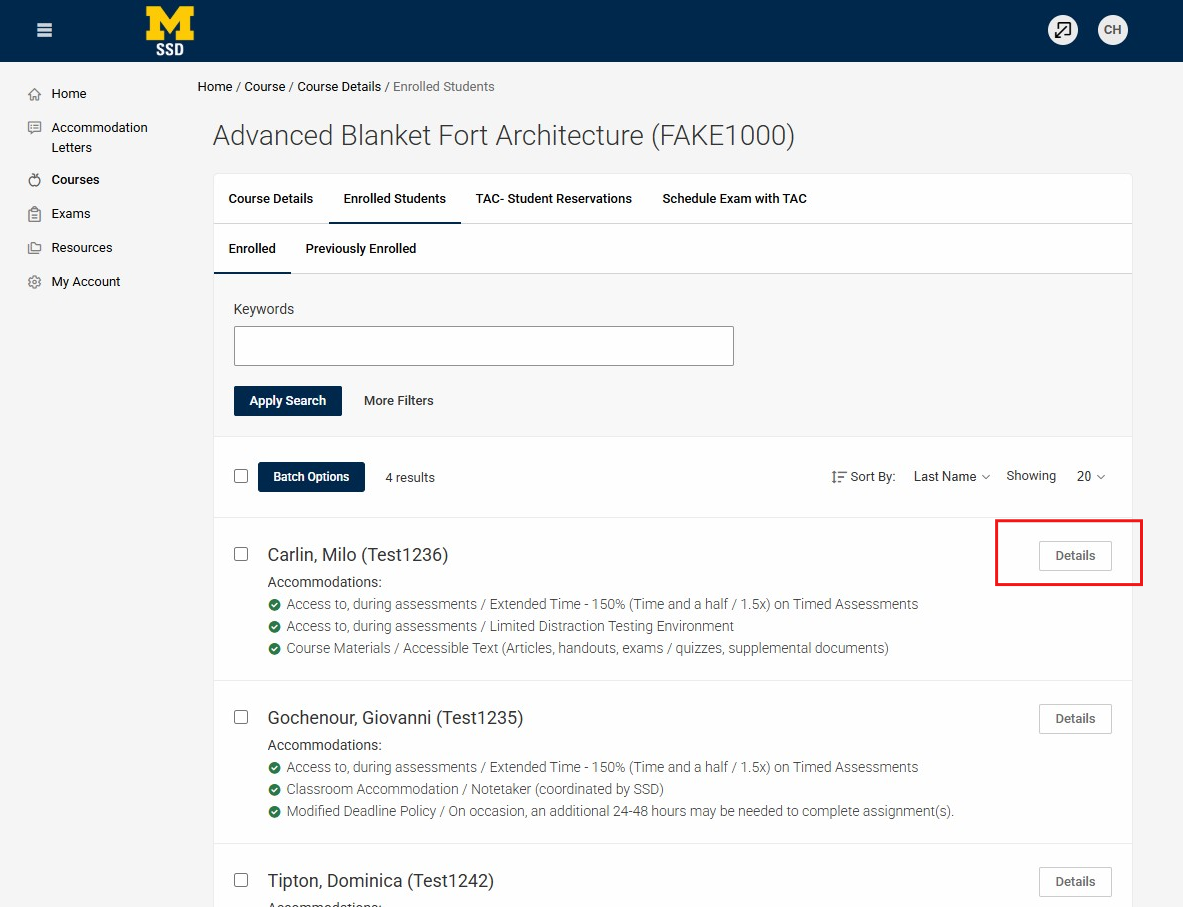
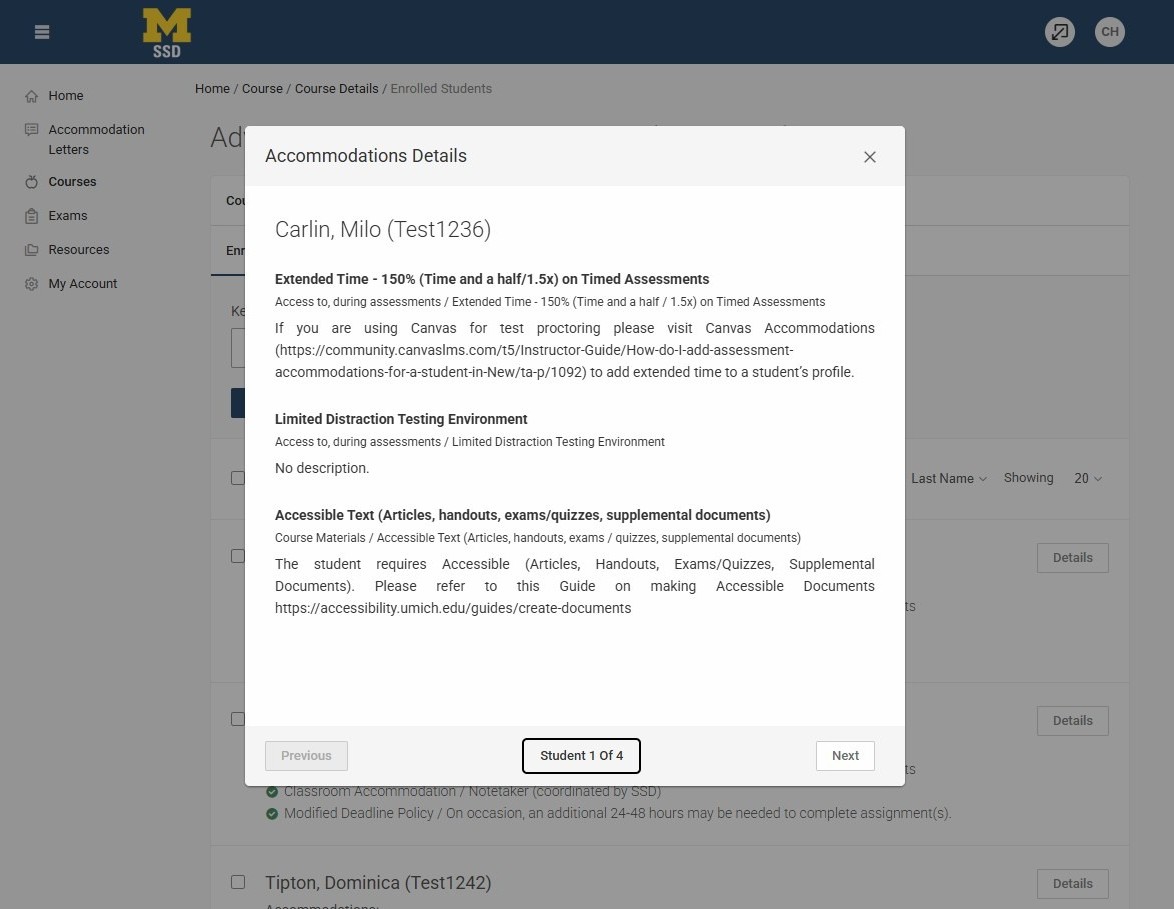
If you have questions about the accommodation or what it entails, you can select the details button, which opens a pop-up window with additional information.
Download Excel Sheet for Individual or All Students in Your Course
Step 7
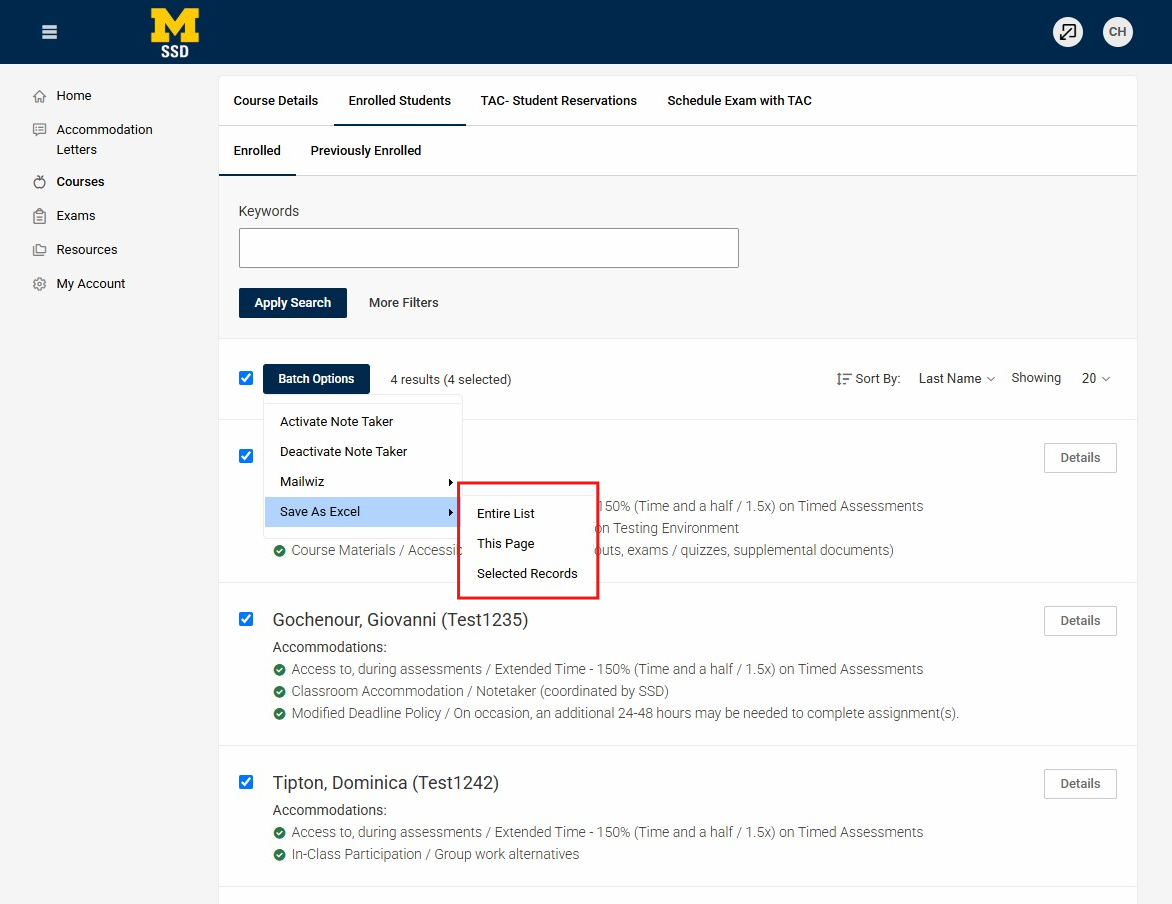
Within the courses tab, you have the ability to save an excel file with the students who have requested accommodations in your course and the accommodations.
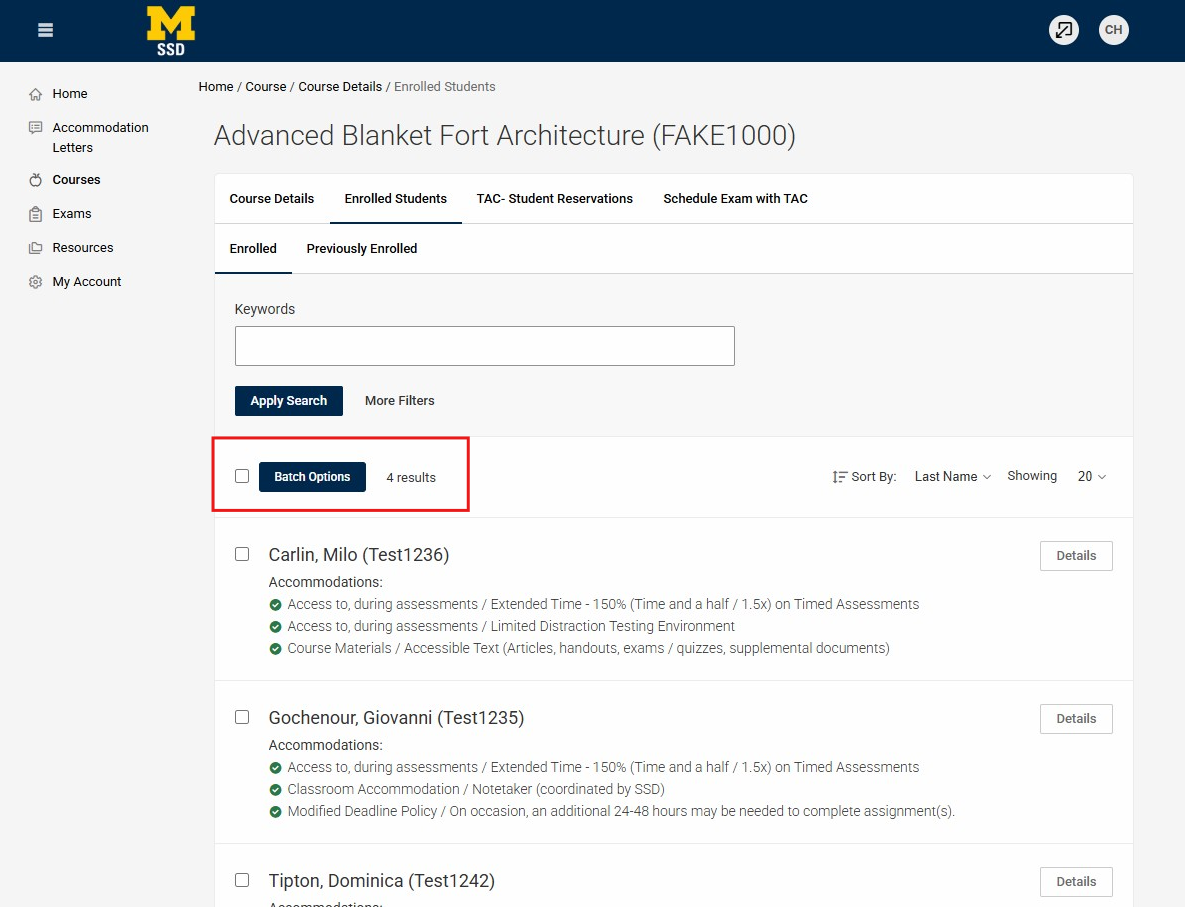
You can select the box next to the individual students, or select the box next to batch options, which will select all students.
Step 8
When you select the box next to batch options it will check all students included in the class that have requested accommodations up to that point.
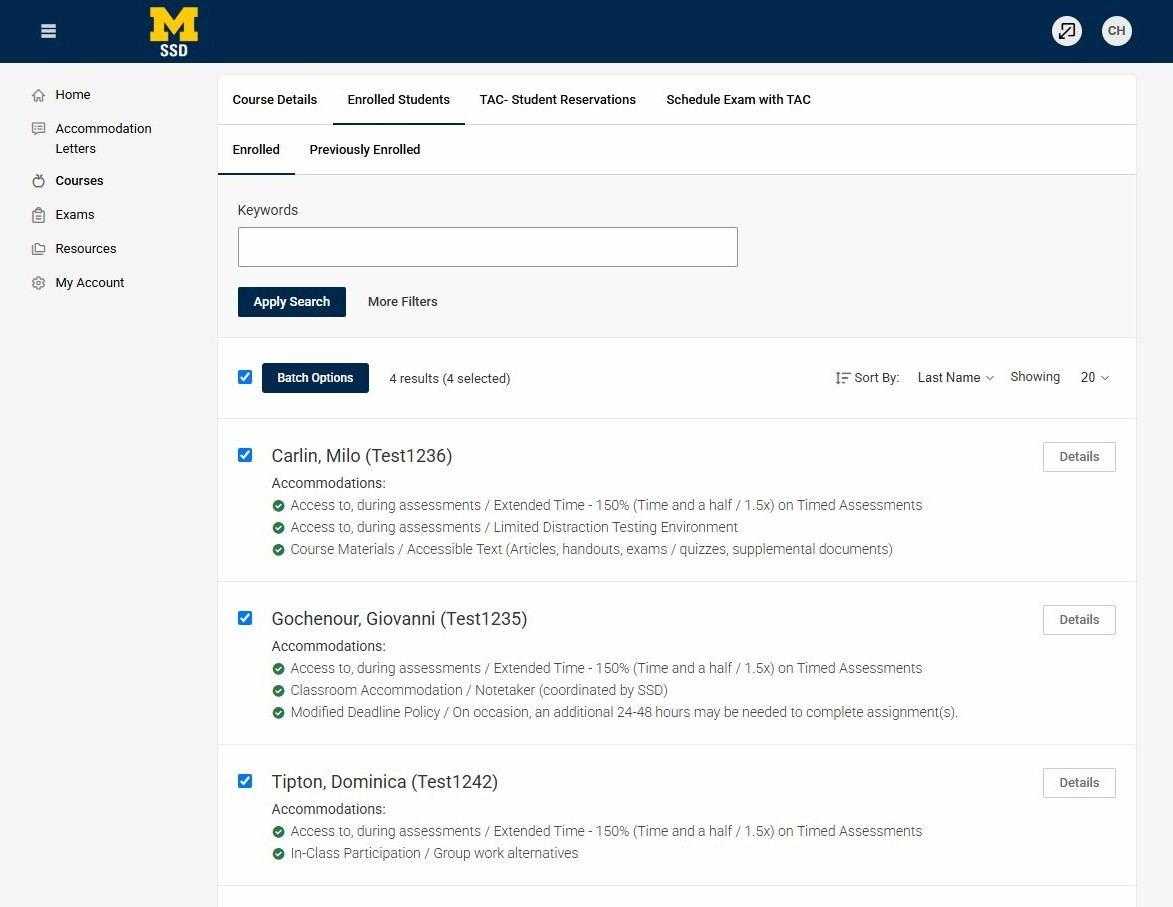
Step 9
Select the batch options box, which will produce a drop down menu with the option to "Save As Excel."
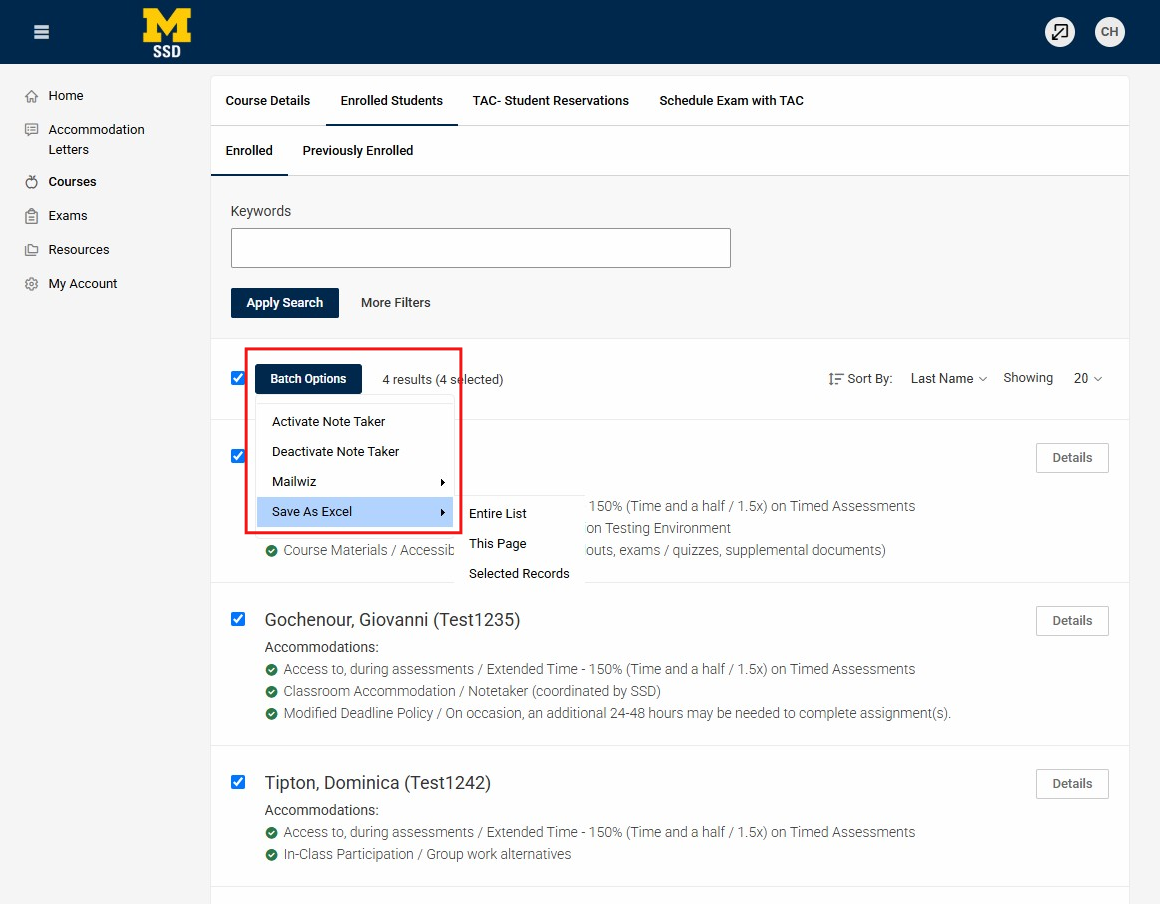
Step 10
Once you select "Save As Excel" a sub-menu will appear which will allow you to indicate which students "records" you would like to export - entire list, this page, or selected records.